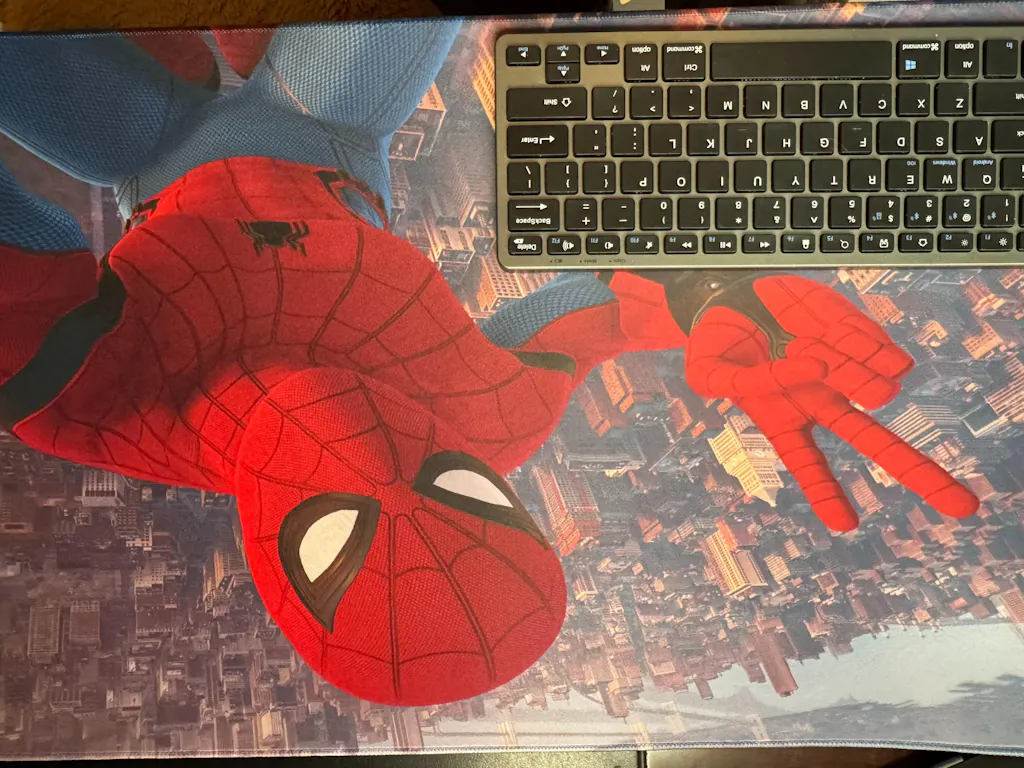
Have you ever noticed your mouse suddenly feeling slower, less precise, or strangely inconsistent?
One day, your mouse glides effortlessly. Next, every movement feels heavy, sticky, or “muddy.” Whether you use your setup for gaming, work, or creative tasks, a worn-out mousepad can seriously affect comfort and performance.
The good news? In most cases, the problem is easier to fix than people think.
In this guide, we’ll explain why your mousepad feels slow, what causes inconsistent tracking, and how to restore that smooth glide without damaging your desk setup.
Why Does a Mousepad Suddenly Feel Slow?
For many users, especially gamers and professionals, mouse control matters.
A mousepad that feels inconsistent can affect:
- Gaming aim and tracking accuracy
- Productivity and workflow speed
- Wrist comfort during long sessions
- Precision for graphic design or editing
Most people assume the mouse is the issue. But in reality, the mousepad surface condition is often the hidden problem.
1. Sweat and Skin Oil Build-Up
One of the biggest reasons mousepads lose smoothness is oil and sweat accumulation.
Over time, natural oils from your hands slowly build up on the fabric surface. Dust sticks to these oils, creating uneven friction.
This often causes:
- Sticky movement
- Inconsistent glide speed
- Reduced tracking precision
- Rough texture in common movement areas
This is especially common in large gaming mousepads and cloth mousepads for FPS gaming.
2. Dust and Microscopic Dirt
Even if your setup looks clean, your mousepad constantly collects tiny particles.
Dust, pet hair, food crumbs, and debris slowly settle into the fabric texture.
The result?
Your mouse no longer glides evenly.
You may notice:
✔ Slow movement in one area
✔ Faster glide in another
✔ Random skipping or inconsistency
Many users search:
“Why does my mousepad feel muddy?”
The answer is often simple: your surface needs maintenance.
3. Wrong Cleaning Method
Here’s where many people accidentally ruin their mousepads.
A common mistake is:
❌ Throwing it directly into a washing machine
❌ Using harsh detergent
❌ Scrubbing aggressively
This can damage the surface coating and permanently change the glide speed.
Instead, use a gentle method:
- Use lukewarm water
- Add mild soap
- Softly clean the surface using your hand or a microfiber cloth
- Air dry completely
Avoid high heat.
This helps preserve smooth gaming mousepad performance and keeps tracking consistent.
Signs It’s Time to Clean Your Mousepad
Not sure if cleaning is necessary?
Here are common signs:
Your Mousepad May Need Cleaning If:
- Your mouse suddenly feels slower
- Tracking becomes inconsistent
- The center area feels rougher than the edges
- You notice discoloration or shine spots
- FPS aiming feels less accurate
For gamers, this can directly impact performance.
For office users, it simply makes everyday work more frustrating.
Can an Old Mousepad Be Restored?
Sometimes yes.
If the issue comes from dirt or oils, cleaning can dramatically improve glide.
However, if the surface fibers are permanently worn down, replacement may be the better option.
High-quality mousepads typically last longer and maintain smoother tracking over time.
When choosing a replacement, look for:
- Durable stitched edges
- Consistent cloth texture
- Comfortable wrist movement
- Non-slip rubber base
- Long-lasting surface coating
The Simple Fix Most Users Ignore
Here’s the surprising truth:
Many people replace their mouse before checking the mousepad.
But often, the mousepad is the real problem.
A quick cleaning routine every few weeks can improve:
✔ Precision
✔ Comfort
✔ Speed
✔ Gaming performance
✔ Daily productivity
Sometimes, restoring smooth movement is easier than buying new gear.
Final Thoughts
If your mousepad suddenly feels slow, rough, or inconsistent, don’t ignore it.
Small surface changes can make a big difference in how your mouse performs.
A clean, high-quality mousepad helps deliver smoother glide, better control, and a more comfortable experience—whether you're gaming late at night or working all day.
Before replacing your mouse, check your mousepad first. You might be surprised by how much difference it makes.